How do I View My Wallet Transactions?
Each time a transaction is recorded on your wallet, you will be notified via email and details will be recorded online. You can view transaction history by following these simple steps.
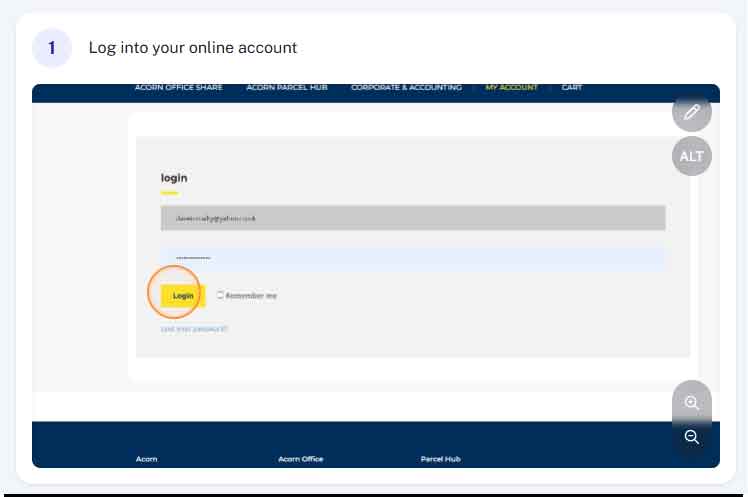
Step 1 - Log into my account.
Log into your online account at www.AcornBusinessSolutions.com/my-account you will need your username (usually your email address) and password which can be reset online if needed.
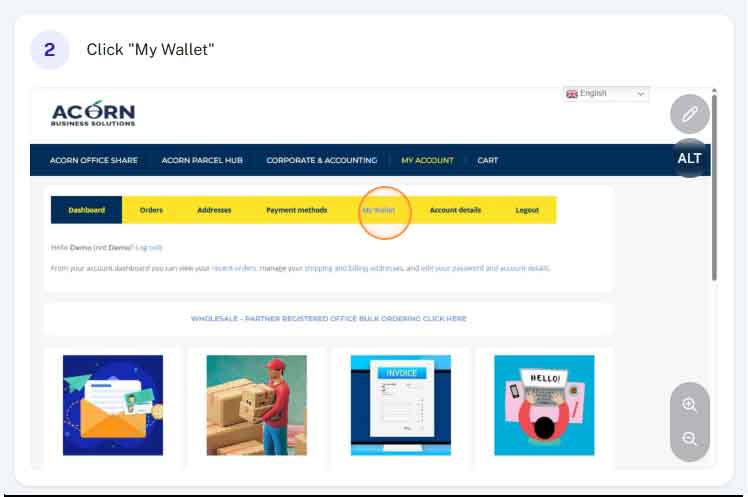
Step 2 - Click "My Wallet"
At the top of the screen click “My Wallet”
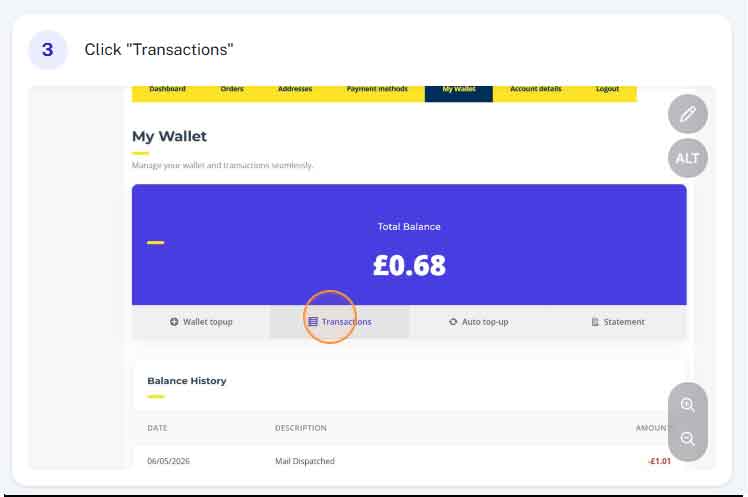
Step 3 - Click My Transactions
Normally the transaction history will be the first page to open, if not simply click “Transactions”
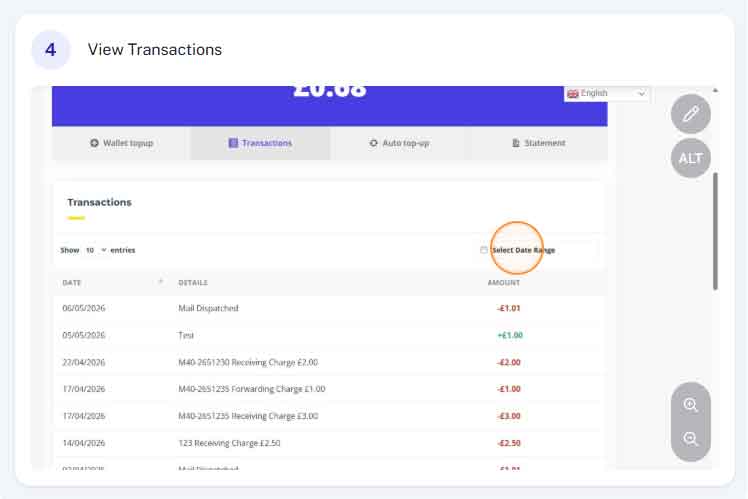
Step 4 - View transactions list
View your complete transaction list below, All deposits and debits will be listed here. For ease of use, debits will be recorded in red and deposits in green. There will also be a description of what the transaction relates to.
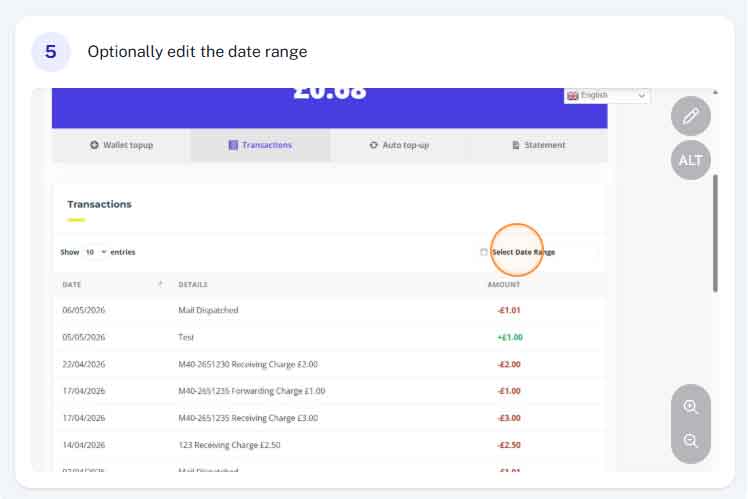
Step 5 - Optional change date range
You can optionally narrow down the transaction list to a specific rage. Simply click the date shown below to specify a date range. This will filter out any transaction not within your defined date range.