How Do I Set Up Auto Top Up
The Acorn wallet allows you to setup an automatic top up. Saving you time and avoiding possible delays. Follow this simple guide to setup automatic top up.
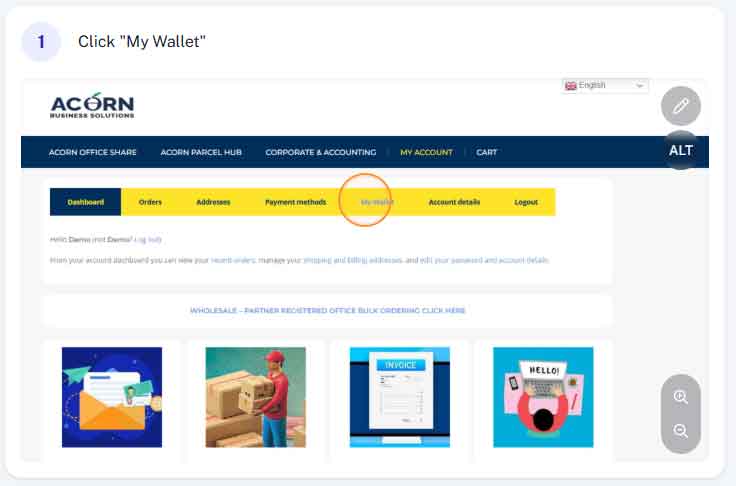
Step 1 - Access My Wallet
From within your account (acornbusinesssolutions.com/my-account) click on the “My Wallet” tab at the top of the page.
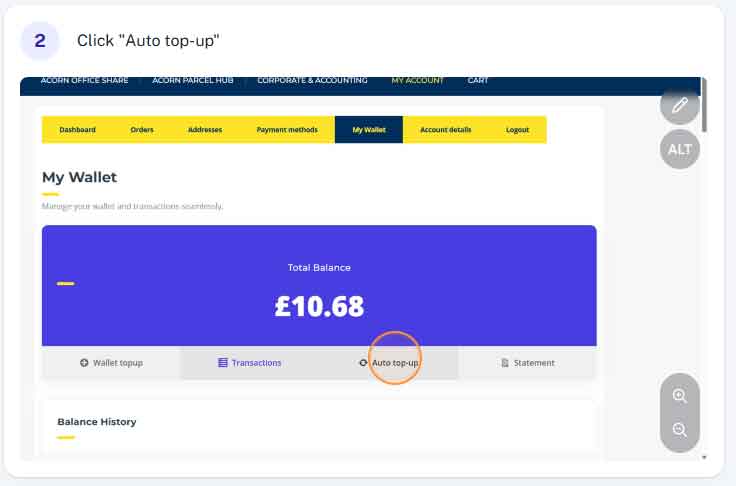
Step 2 - "Auto Top Up"
Once you’ve accessed the “My Wallet” section you will be able to view details and your current balance. Simply click “Auto Top up”
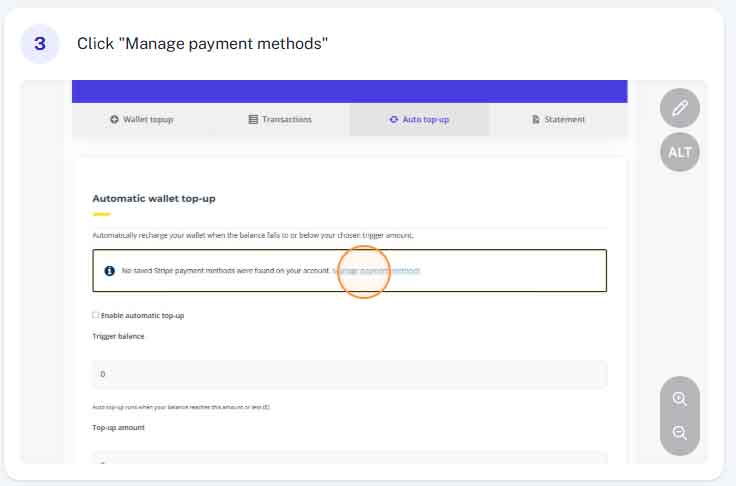
Step 3 - Saved Payment Methods
If you have previously saved payment details these will be shown here and you can skip to step 10 below. If not, you will need to click “manage payment methods” to add payment details.
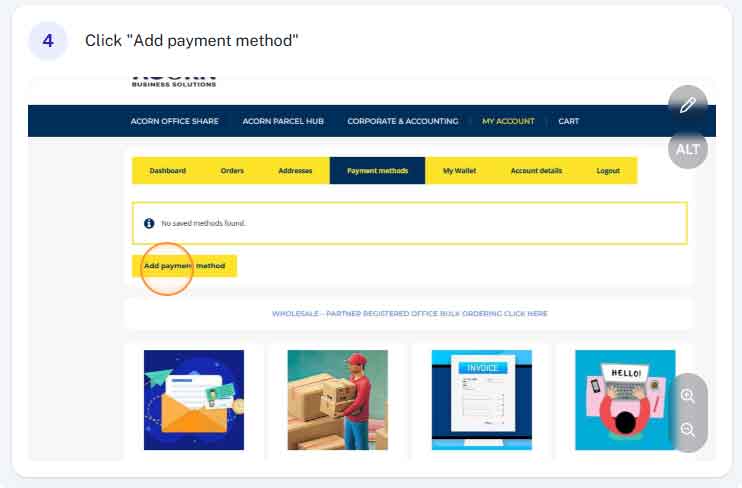
Step 4 - Click "Add Payment Method"
Once in the manage payment methods section, click “add payment method”
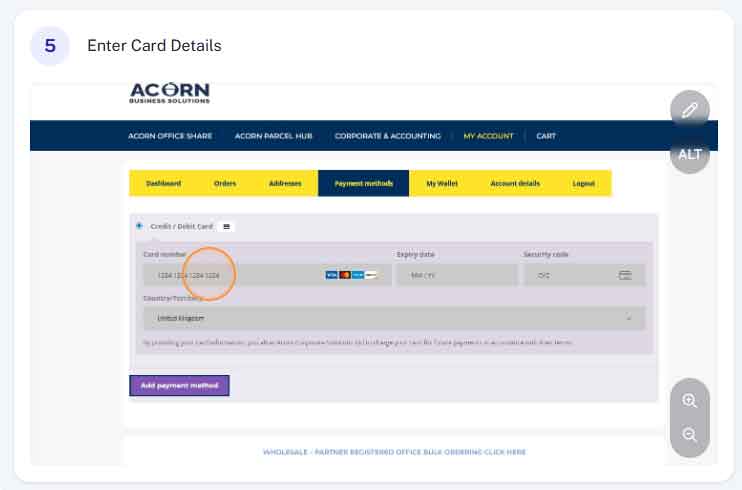
Step 5 - Enter Payment Details
Here you will enter your credit/debit card details, which will be saved for automatic top ups.
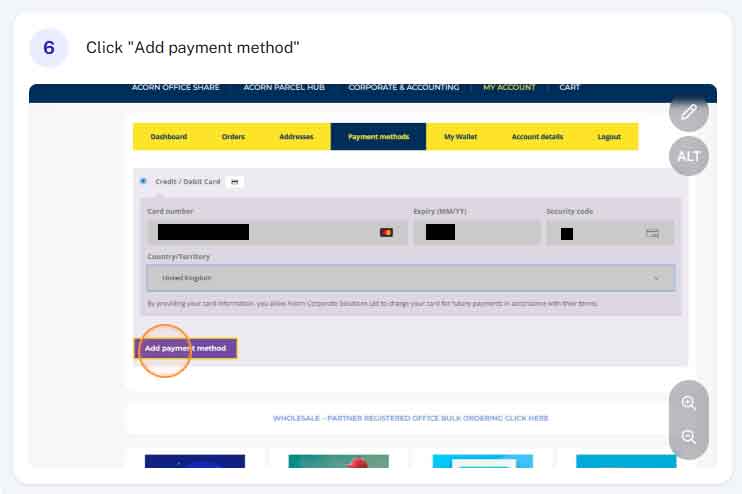
Step 6 - Click "Add Payment Method"
After entering your credit/debit card details, click “add payment method” depending on who you bank with you many need to authorise this via text code or online banking app. This will ask you to authorise a transaction of £0.00.
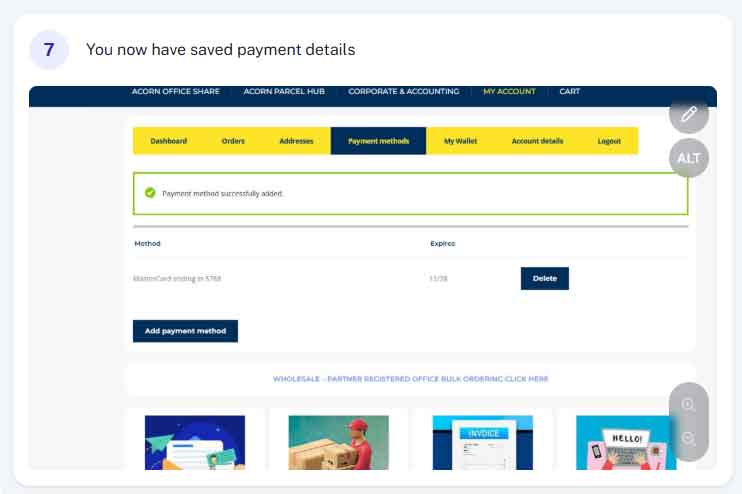
Step 7 - You have now saved your payment method
You have now successfully saved your payment method which can be used in the wallet system.
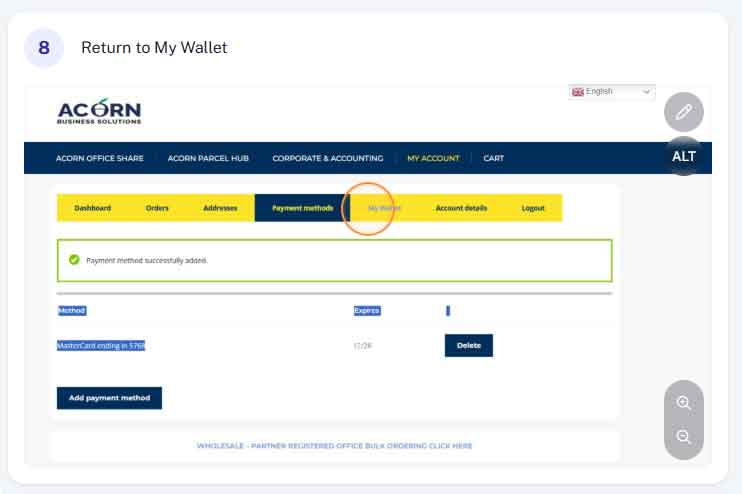
Step 8 - Return to the "My Wallet" section
Return to the My Wallet by clicking the link at the top of the page.
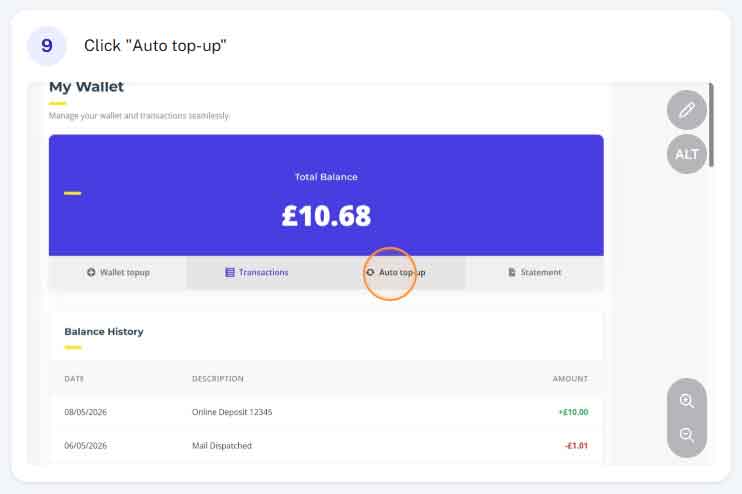
Step 9 - Click "Auto Top Up"
You can again click the “Auto Top Up” tab at the top of the page.
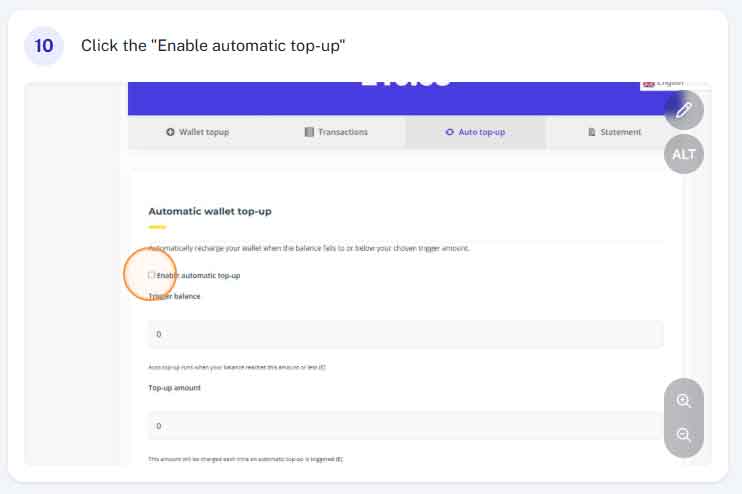
Step 10 - Enable Auto Top Up
Select the “Enable Auto Top Up” checkbox.
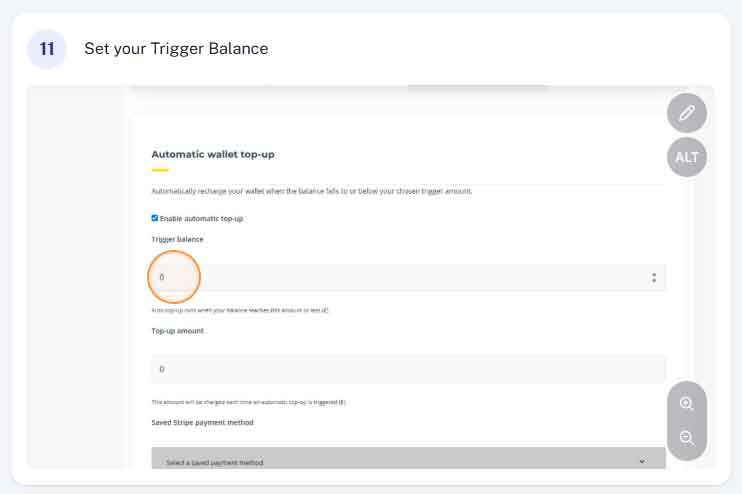
Step 11 - Set Trigger Balance
The trigger balance is the balance you wallet must reach before an automatic top up is triggered. For example if you select £5.00, once deductions are made from your wallet leaving a balance of £5.00 or less, the automatic top up will trigger.
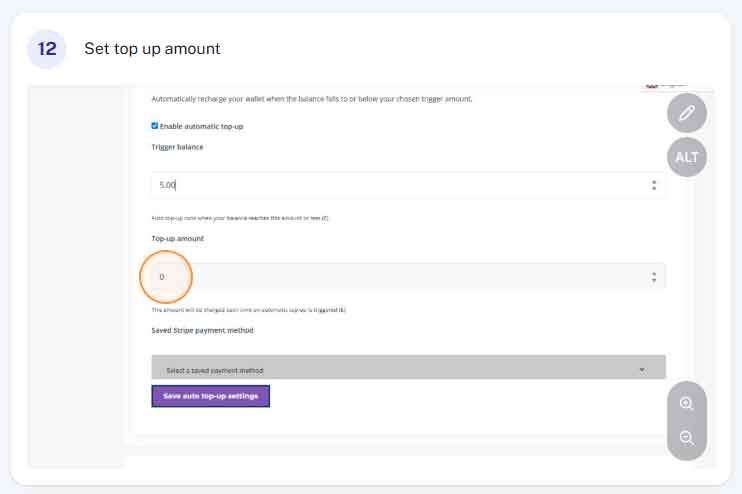
Step 12 - Set Your Top Up Amount
Here you can set how much you’d like to top up. For example £20.00 Once your trigger balance (set above) is reach a £20.00 top up will automatically be charged to your saved payment method and credited to your wallet.
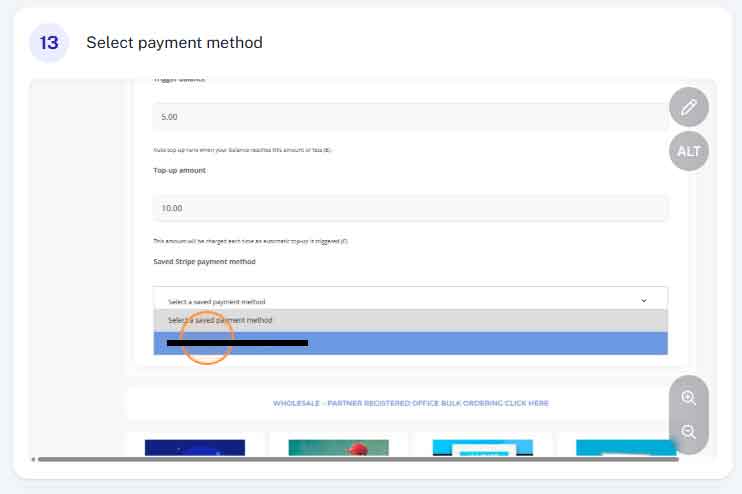
Step 13 - Select Preferred Payment Method
From the drop down list, select the payment method you wish to use to automatically top up your wallet.
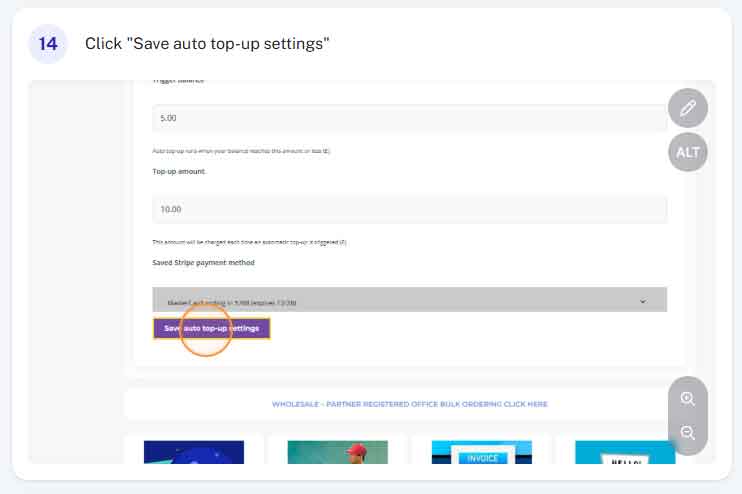
Step 14 - Click "Setup Auto Top Up"
You can now click the “Setup Auto Top Up” button.
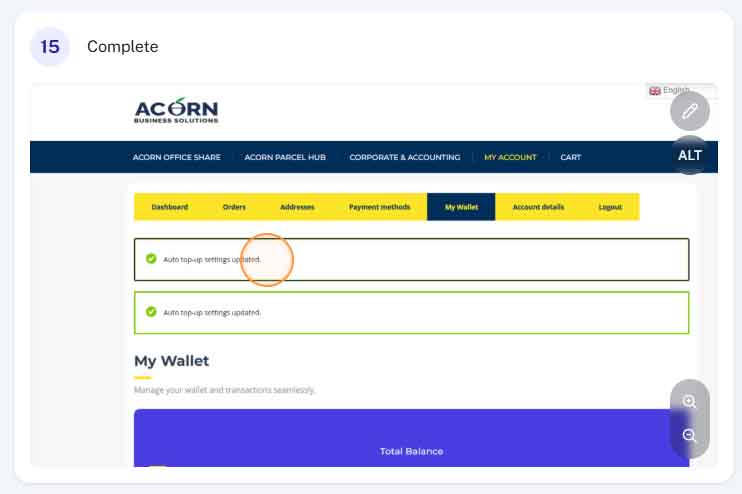
Complete
You have now successfully setup your automatic top up. Each time your trigger balance is reach your required top up will automatically be charged and deposited into your account.
If your current balance is already below your trigger balance, it may take 15 – 30 minutes for the first auto top up to apply.