Setup Storage Folders
With the Acorn mail scanning system, you can now store mail online for future reference. To assist in storing and retrieving mail, we have the option to add storage folders. You can create a folder named HMRC for all HMRC mail and a folder named Companies House for all Companies House mail etc.
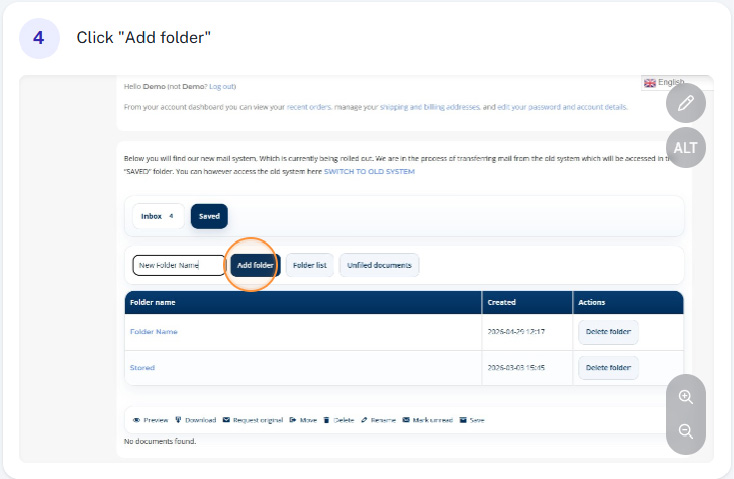
Step 1 - Click Saved
Click “Saved” to access your file system, this is where all mail will be stored after saving.
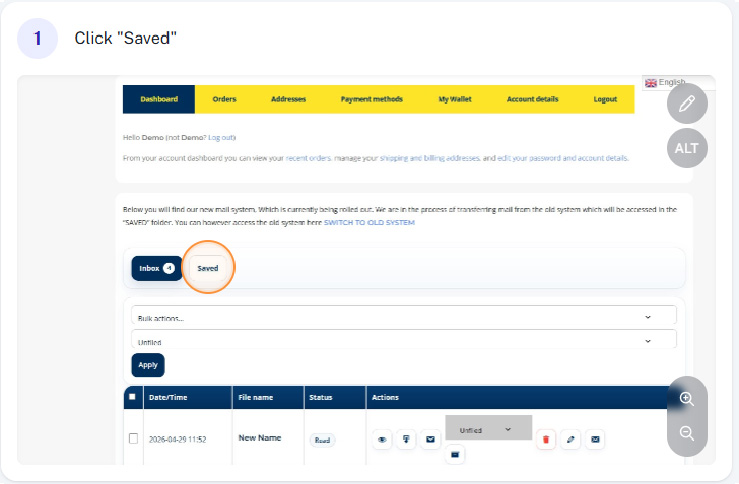
Step 2 - Click on the "New Folder Name" filed
Click on the “New Folder Name” text field.
Step 3 - Enter Desired Folder Name
Here you can add a unique folder name For example Companies House, HMRC, Bank, Customers.

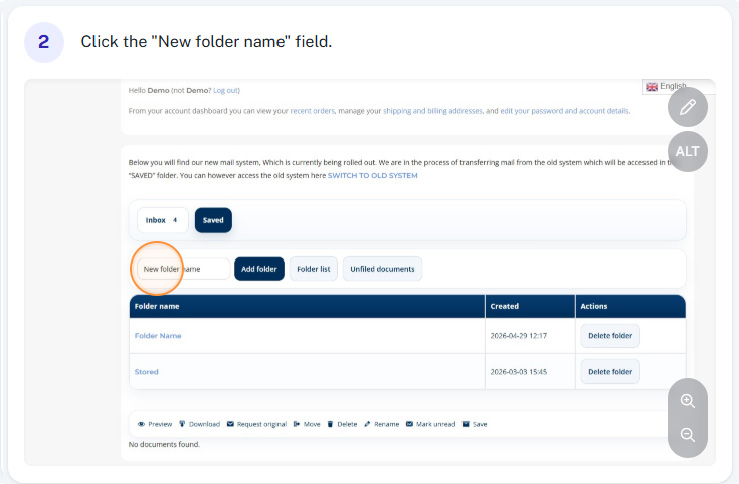
Step 4 - Click "Add Folder"
Once you’ve entered the desired name click “Add New Folder” this will generate a new folder in your “Saved” section. You can now move mail to this folder.